
Aniketos
Make your PlayStation 5 do more.
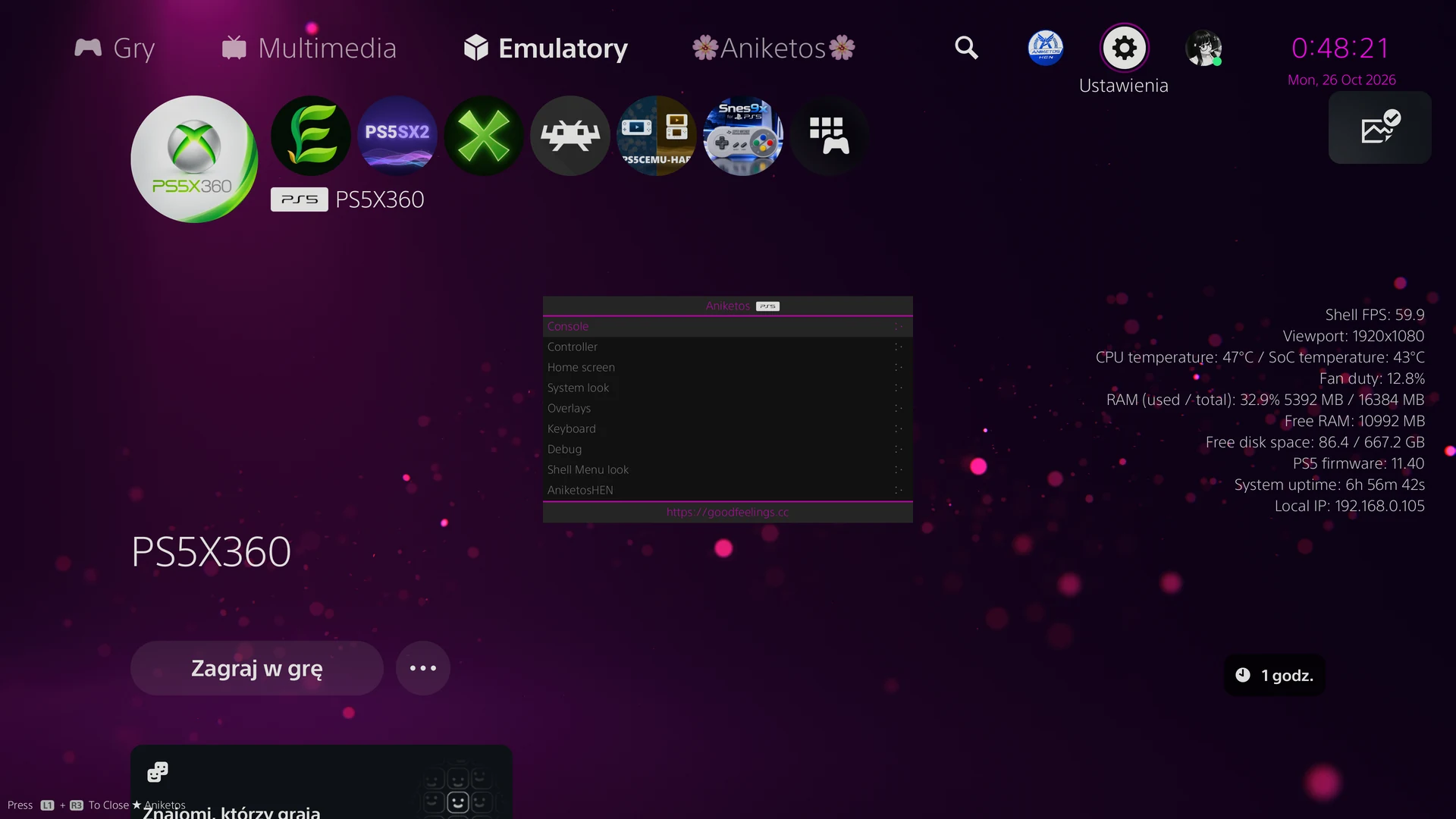
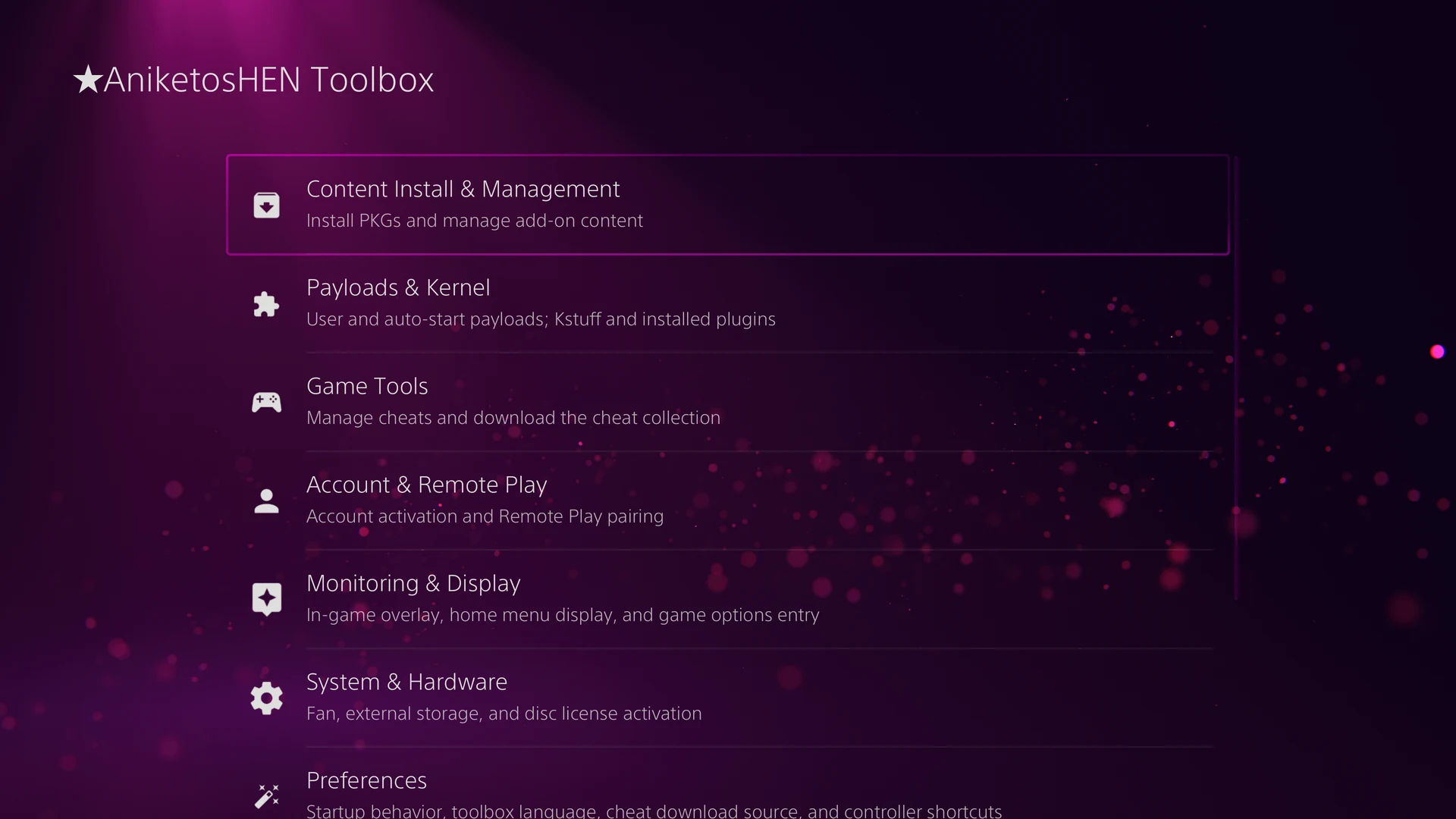
Aniketos (AniketosHEN on screen) is a free, open source homebrew enabler for jailbroken PS5 consoles. Load it after you turn the console on, and it adds a Toolbox to PS5 Settings, its own menu on the home screen, and tools for your games and for the look of the console.
About
What is Aniketos?
A homebrew enabler, or HEN, unlocks a PS5 that has already been jailbroken so that it can run homebrew: games, apps and tools made by the community instead of by Sony.
Aniketos is not installed into the console. It runs only while the console is on, and turning the console off or restarting it brings back the normal PS5. Your Aniketos settings stay saved, so everything is the way you left it the next time you load it.
It is free and open source, and it continues the work of OnionHEN and etaHEN.
- Free to use
- Open source under GPL-3.0
- Never installed into the system
- Gone after a restart, with your settings kept for next time
- Blocks system updates while it runs
- Available in 14 languages
Compatibility
Which PS5 can run it?
Aniketos supports PS5 system software 4.03 to 13.60, the same range as OnionHEN, which it is based on. Your console also has to be jailbroken, which depends on a kernel exploit being available for its version.
- PS5 models
- Nothing in Aniketos depends on the model, with or without a disc drive. We test it on the original and the slim PS5. It has not been tested on the PS5 Pro yet.
- System software 4.03 to 13.60
- Every version from 4.03 up to and including 13.60 is supported, homebrew games and apps included. On 5.50, not every console works yet.
- Tested on
- System software 11.40 and 13.42 by us, and 13.60 by a tester.
- What you need
- A jailbroken PS5 running an ELF loader (elfldr) on port 9021, which most PS5 jailbreaks start, and a way to send AniketosHEN.elf to it, such as a payload sender on a computer or phone on the same network. No USB drive is needed.
- One HEN at a time
- Aniketos refuses to start while etaHEN, certain other tools or another copy of itself are running, and it should not be loaded alongside any other HEN. Restart the console and load Aniketos on its own.
On system software 13.00 and later, optional add-ons such as the FTP server still run, but their settings pages do not appear in the Toolbox yet.
Why Aniketos
Made to be easy and yours
-
Everything in one place
Settings, tools and extras live in one Toolbox inside PS5 Settings and in one menu on the home screen.
-
A PS5 that looks like yours
Change colours, backgrounds, the clock, the game tiles and even the system font.
-
Nothing to install
Aniketos is never installed. Restart the console and it is gone, with your settings kept for the next time.
-
Know what your console is doing
See temperatures, fan speed, memory, storage and frame rate on the home screen or on top of a game.
-
More from your games
Switch cheats on and off while you play, from a menu right inside the game.
-
In your language
The Toolbox and its messages come in 14 languages and follow the language of the console.
-
Open source
All of the code is on GitHub, so anyone can read it, build it and help improve it.
-
Easy move from OnionHEN
Your settings, payloads, plugins and cheats come along on the first start. Your OnionHEN folder is left as it is.
Features
What you can do with it
Shell Menu
A menu of its own on the PS5 home screen. Press L1 + R3 to open or close it. It stays closed while a game is running, so it never gets in the way.
- Four menu styles to choose from, with your own colours, size and position
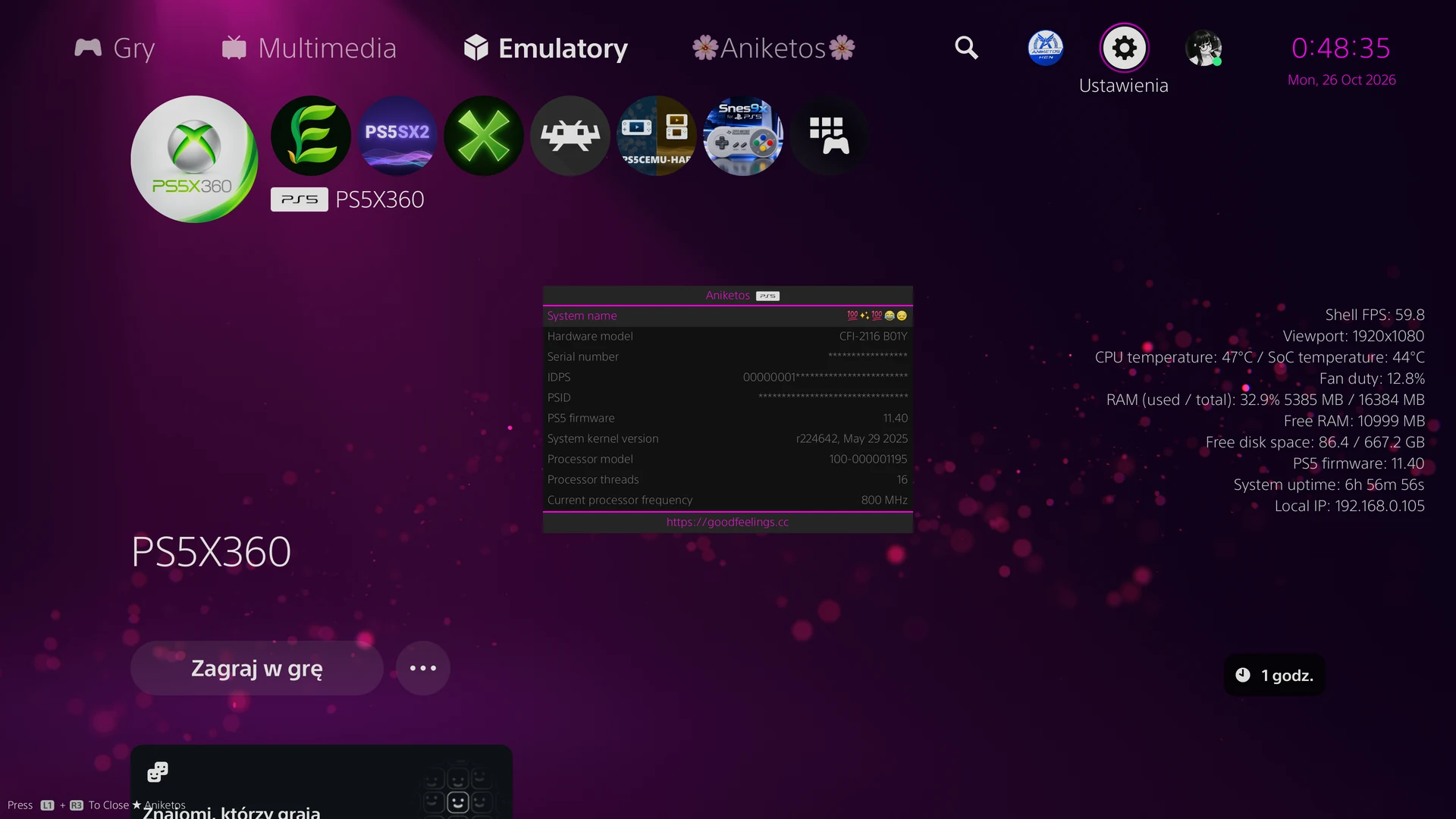
- Console information at a glance: system software, temperatures, fan speed, memory, free space and the console's network address
- The serial number and other console identifiers stay hidden until you confirm you want to see them
- Most changes take effect immediately, and all are remembered
Console and controller
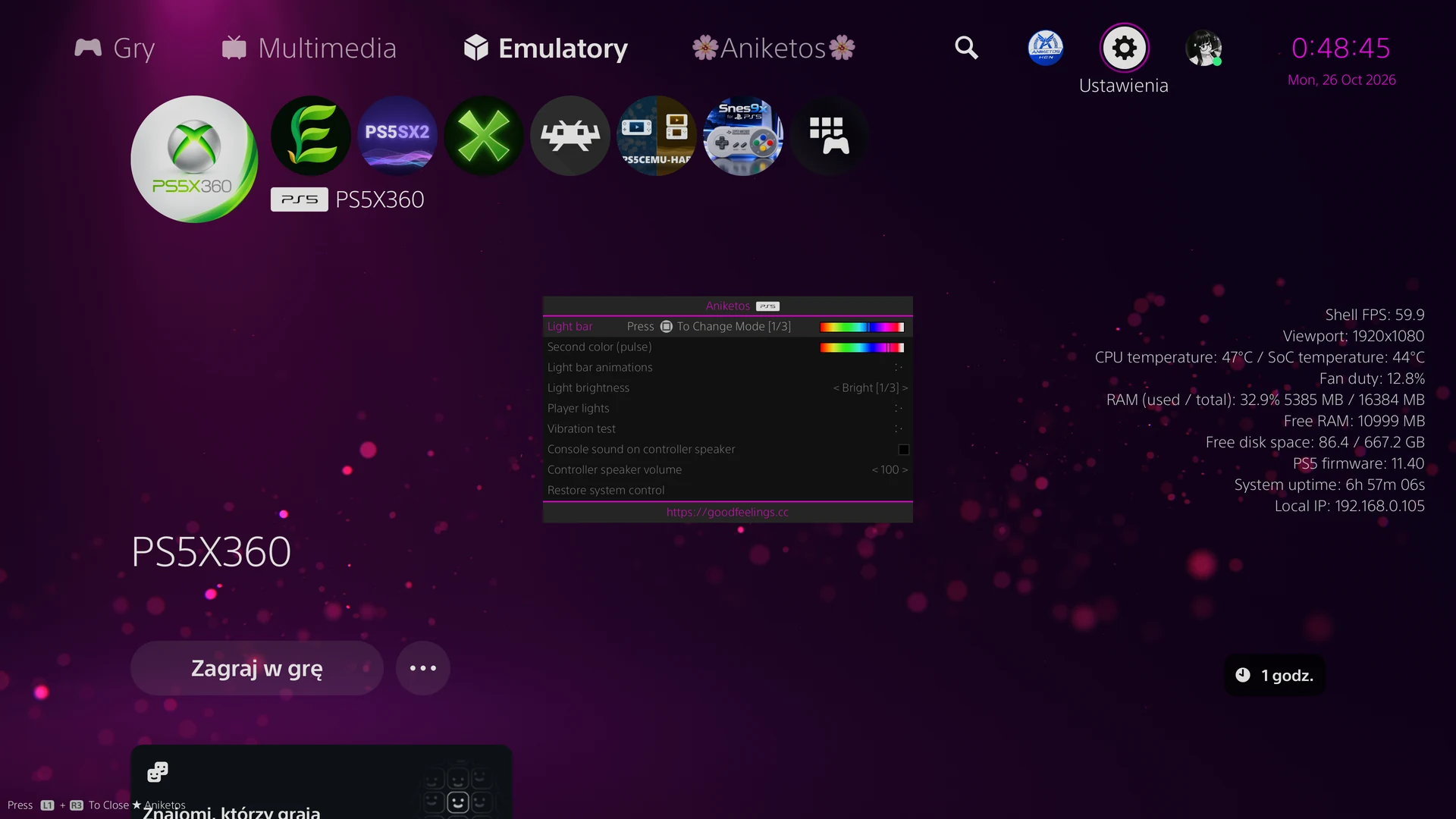
Power, cooling and lights, controlled from one menu.
- Refresh the home screen, restart the console interface, put the console in Rest Mode, restart it or turn it off
- Set the temperature at which the fan speeds up
- Colour and animate the controller's light bar, set its player lights and test its vibration
- Change the colour of the console's power light and use its buzzer
Make the PS5 yours
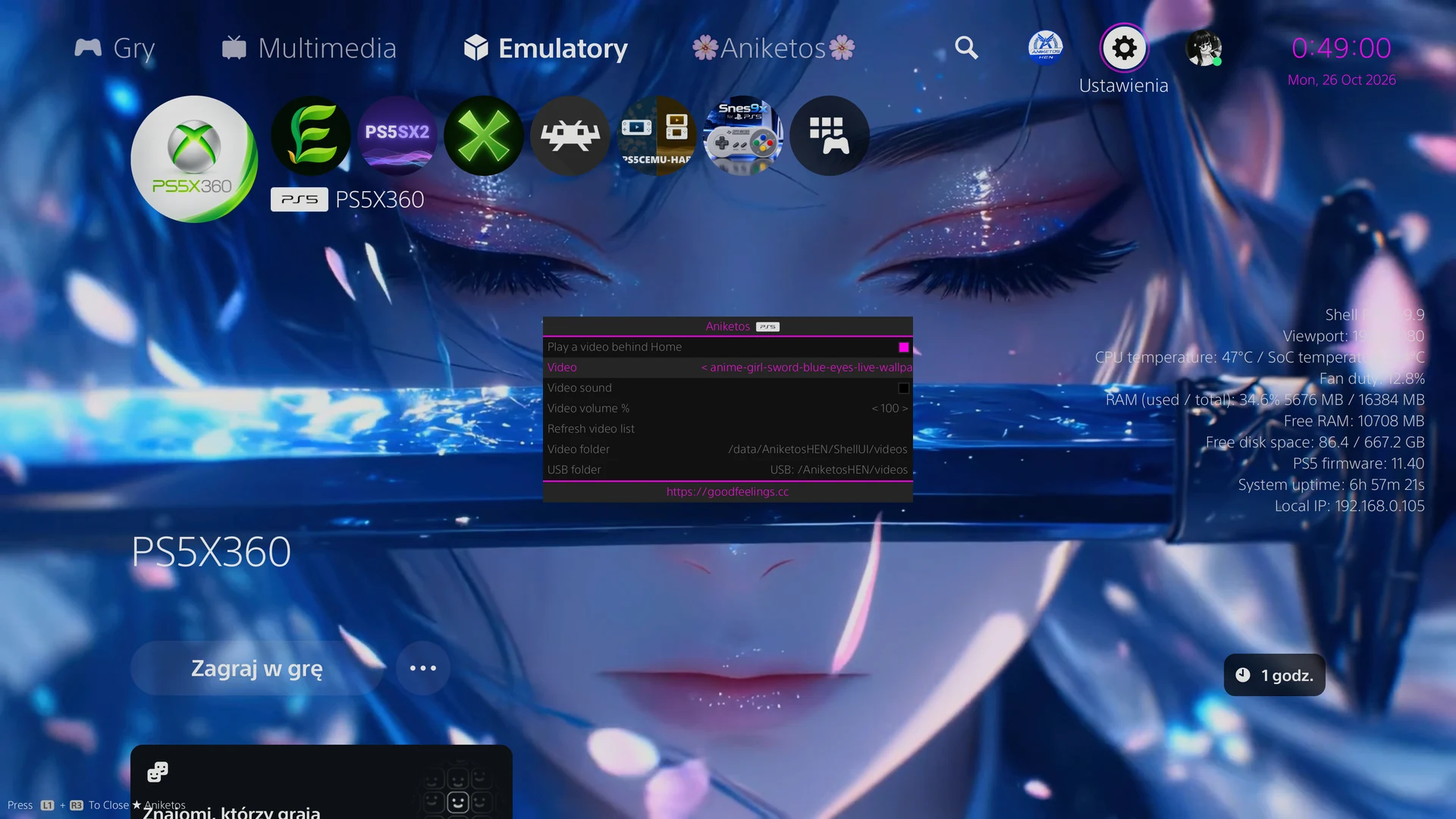
Change how the console's own screens look, from one colour across everything to the smallest switch.
- One colour theme for the whole interface, still or animated
- Your own video or picture behind the home screen, with effects and particles
- Your own colour for the Aniketos logo, on the home screen, in Settings and in notifications
- Round game tiles, coloured focus outlines and a restyled clock and date
- Your own profile picture, animated GIF and WebP included, with a clear message if a file is too large
- Backgrounds that also reach Settings and other system screens
- Several styles for the system's on/off switches and for the Shell Menu itself
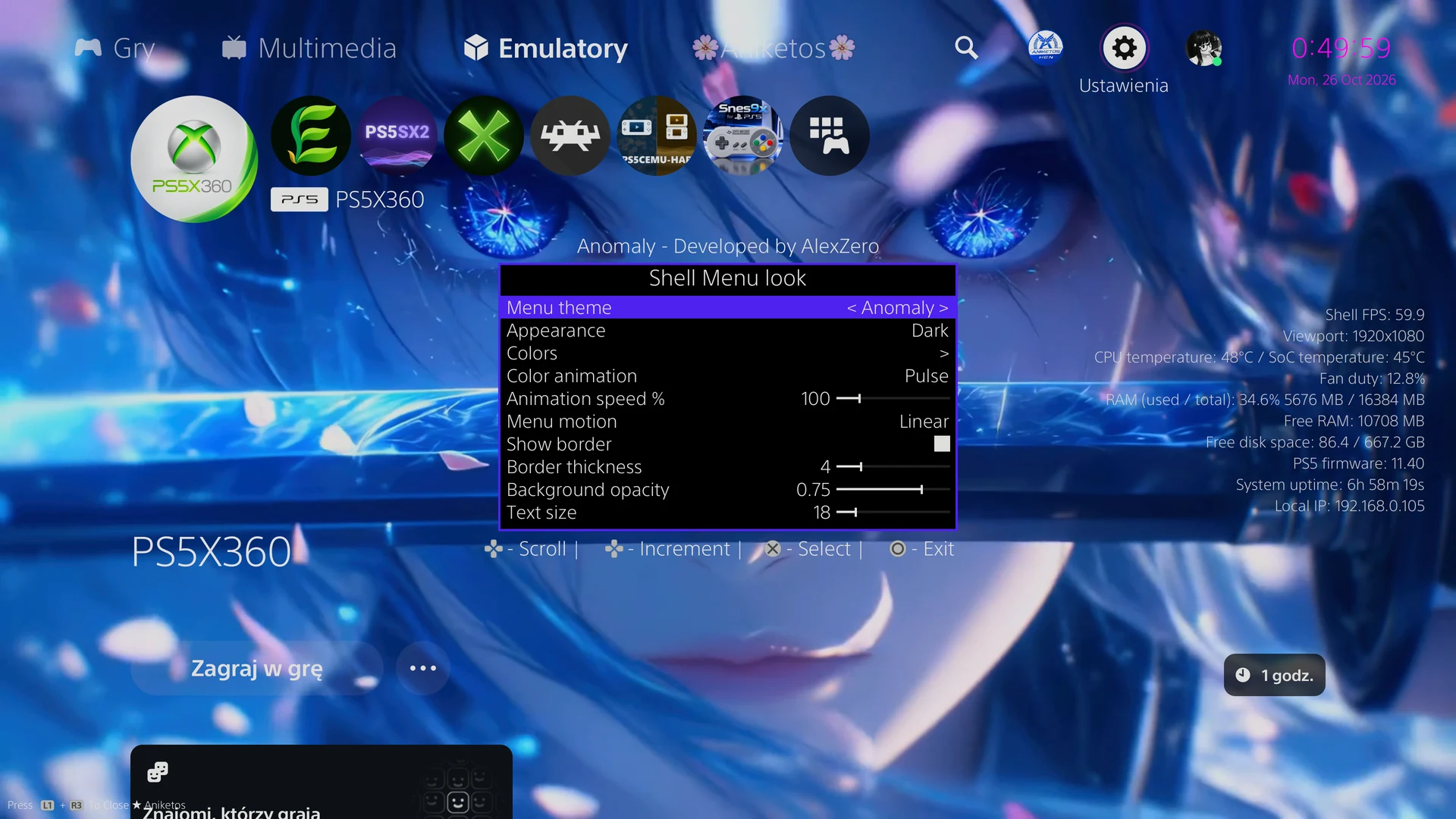
Your own system font
Show the console's Latin text in a font you choose: on the home screen, in Settings, in notifications and in the Aniketos menus.
- Copy .otf or .ttf font files to the /data/AniketosHEN/fonts folder on the console
- Turn it on in the Shell Menu under System look, then pick a font from the list
- Turn it off at any time to get the PS5's own font back
- Japanese, Arabic, Thai and other scripts, and any letter your font does not include, keep the console's own font
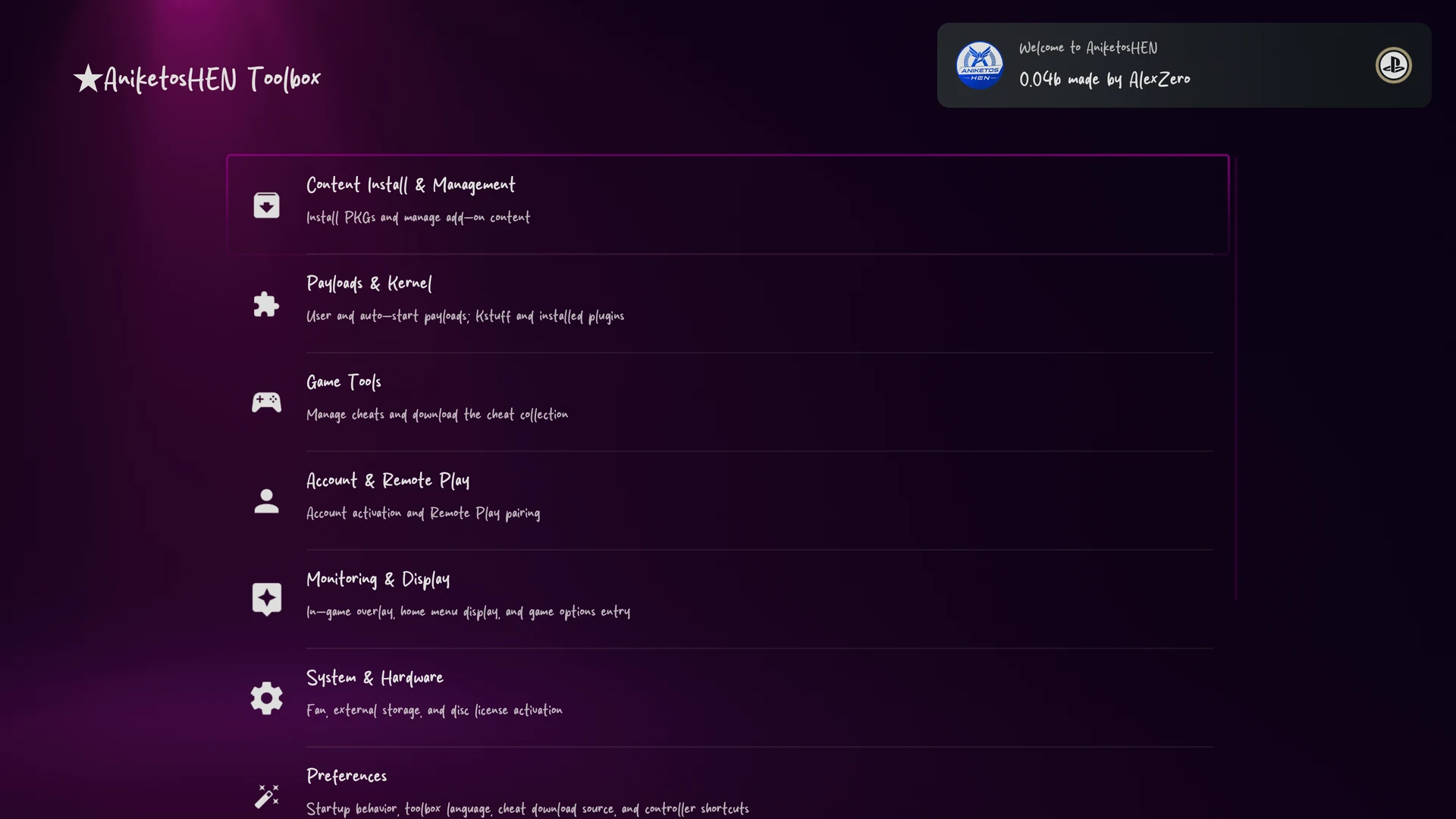
Console sound on your controller
Hear everything the console plays, from games to menus and videos, on the DualSense controller's speaker as well. The TV keeps playing too.
- Turn it on in the Shell Menu under Controller
- Set how loud the controller plays, from 0 to 100%
- It plays on the controller of the user who is signed in
Home screen and games
Small things that make the home screen and your library easier to use.
- Games, Media and up to two tabs of your own on the home screen, each with a name and a system icon you choose; show, hide, reorder and delete them
- Copy or move a game between tabs from its Options menu
- Hide a game or app from its Options menu, and bring it back from the Hidden apps page
- Extra details in a game's Information screen, such as its Title ID, region, version and install time
- PlayStation symbols and emoji on the system keyboard
- Move around the system interface with a USB mouse
- Install .pkg files from the console or a USB drive with the Aniketos button menu. Progress shows in Downloads, with the game's name and icon
Web browser
More room for the PS5's built-in web browser, and your favourite sites right on the home screen.
- Press R2 for a full-screen page with no frames, and R2 again to go back
- Add a page to the Media tab with Options, then Add to Home. The tile uses the site's own icon
- A tile opens its page in full screen
- Keep up to 8 sites, and remove one from its page with Options, then Remove from Home
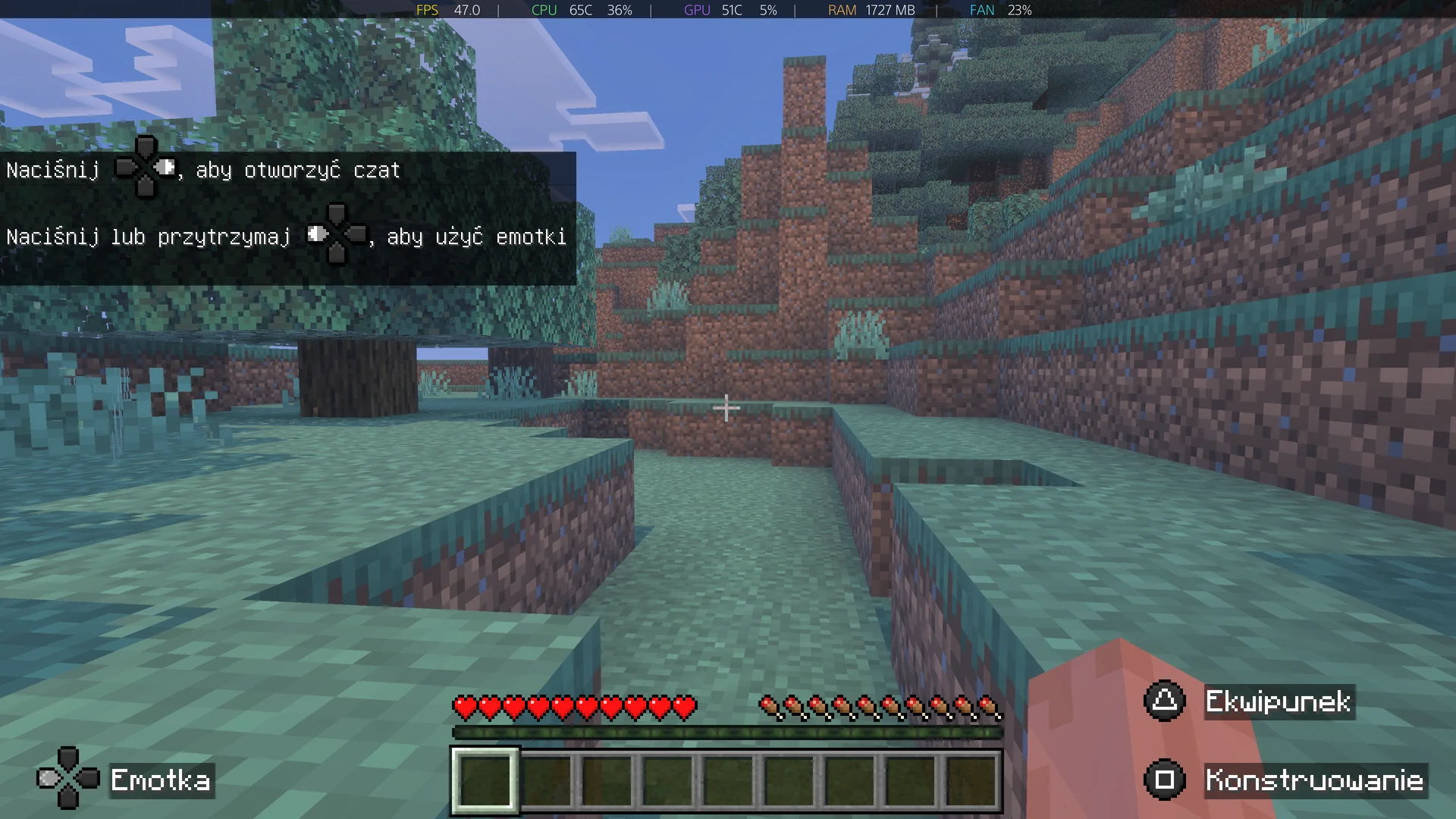
Game monitor bar
A slim bar on top of any game that shows how the console is doing.
- Frame rate, processor, graphics and memory use
- Temperatures, fan speed and network address
- At the top or bottom of the screen, in the size and order you like
- A separate readout for the home screen
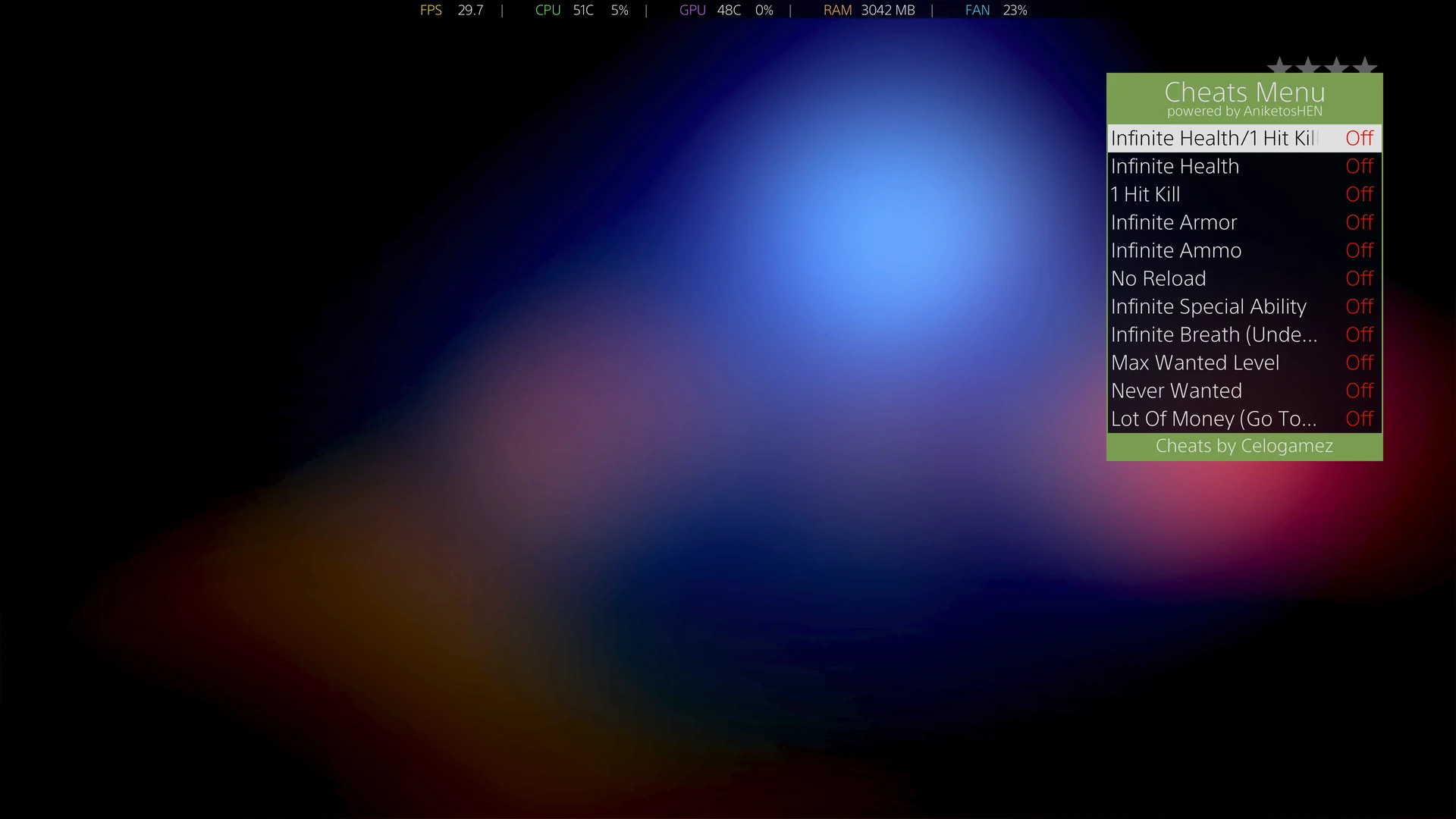
Cheats
Switch cheats on and off while the game is running.
- An optional cheat menu inside the game: turn on Visual Cheats Menu in the Toolbox, then press L1 + L3 + R3 in a game that has cheats
- Also available from the Aniketos menu in the Control Center, from a game's Options menu and from the Toolbox
- Download the community cheat collection in one step
- Unlock a game's trophies from its Options menu. It asks first, because while the console is online, unlocked trophies sync to your PSN profile and cannot be removed there
- Works with the common cheat file formats used by the PS5 scene
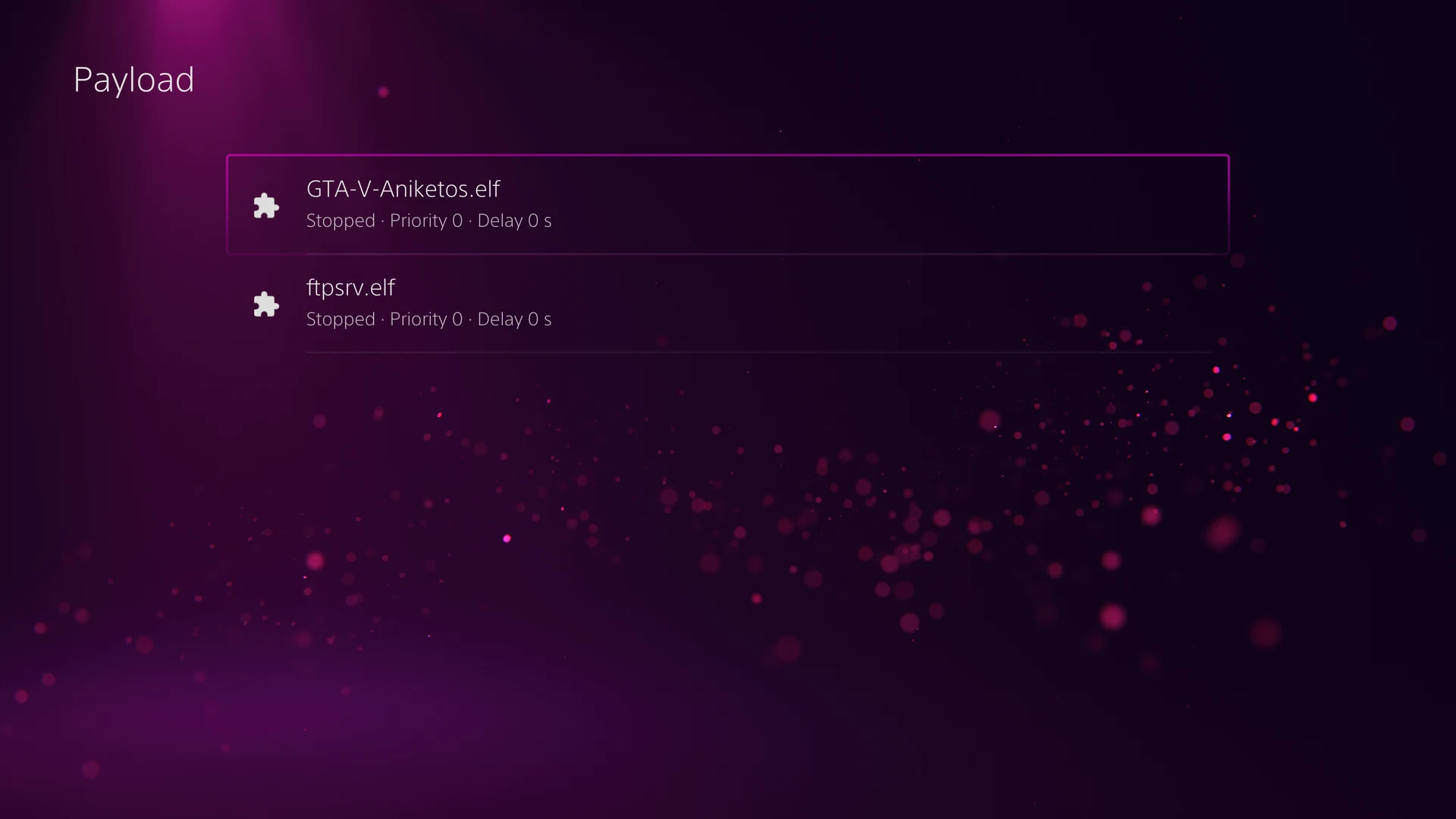
Payload Manager
Find, install and start homebrew tools (payloads) without a computer.
- Browse a catalog of payloads with icons, categories and search, and install or update one with a progress bar
- See what is installed: version, source, size and checksum
- Choose which payloads start with Aniketos: press X on one and move it with up and down, press OPTIONS to give it a load delay or remove it
- kstuff and ShadowMountPlus come included; switch them on under Included payloads
- Nothing starts twice: a payload already running is left alone
Updates
Aniketos tells you when a new version is out.
- It checks GitHub when it starts and tells you once about each new version (you can turn this off)
- Download the new version from the HEN Update Manager in the Toolbox; it is checked before it is saved
- Restart the console and load the new AniketosHEN.elf as usual
x5Guard
Aniketos' own protection, on by default.
- The PlayStation Network Blocker stops PSN sign-in screens, account linking, system update prompts and automatic update downloads, with a short banner each time
- Diagnostics checks every system part Aniketos looks for on your firmware and logs what is missing
- When something new is missing it sends the team a short report without personal data, so it can be fixed quickly (you can turn this off)
Toolbox
A full settings page inside PS5 Settings.
- Start payloads (.elf files) you copy to the console or a USB drive, or install them from the Payload Manager
- Optional add-ons, installed separately: an FTP server and a package installer you use from a web browser
- Pair the PS Remote Play app with the console
- Offline account activation, external hard drive support and controller shortcuts
Speaks 14 languages
The Toolbox and its notifications follow the console's language, or the one you pick.
- English
- 简体中文
- 繁體中文
- 日本語
- 한국어
- Français
- Deutsch
- Italiano
- Español
- Português (Brasil)
- Polski
- Русский
- العربية
- ไทย
Getting started
Up and running in minutes
You need a jailbroken PS5. Aniketos does not include a jailbreak of its own: you start it from the exploit you already use.
- 01 Back up your games and your game saves.
- 02 In PS5 Settings, turn off automatic downloading and installing of system software updates.
- 03 Download AniketosHEN.elf from the latest release on GitHub (every release is also posted on our Discord server).
- 04 Jailbreak your PS5 with a kernel exploit for its system software version, and start an ELF loader on port 9021.
- 05 Send AniketosHEN.elf to the console with the tool or exploit host you use for payloads.
- 06 Wait for the "Welcome to AniketosHEN" notification.
- 07 Open PS5 Settings to find the AniketosHEN Toolbox, or press L1 + R3 on the home screen for the Shell Menu.
- 08 After you restart or turn off the console, load Aniketos again in the same way.
FAQ
Questions people ask
- Does Aniketos jailbreak my PS5?
- No. Aniketos needs a console that is already jailbroken with a kernel exploit. It does not include an exploit of its own.
- Does it change my console permanently?
- Aniketos itself is never installed. After a restart the console is a normal PS5 until you load Aniketos again, and your settings stay saved in /data/AniketosHEN. Some things you do with it last, though: games you install, an activated account, a paired Remote Play device and unlocked trophies. Every time it starts, Aniketos deletes any system update the console has already downloaded, and it blocks new updates while it runs. It cannot block them when it is not running, so turn off automatic update downloads and installs in PS5 Settings.
- Do I have to load it every time?
- Yes. Like every HEN, Aniketos runs until the console is restarted or turned off, so you load it again after each start.
- Can I get banned?
- It is possible. Sony can ban consoles and accounts that use homebrew, cheats or unlocked trophies online, and Aniketos cannot prevent this. Use cheats offline. You can switch the console's internet connection off from the Aniketos button menu.
- Who makes it?
- Aniketos is made by AlexZero and Andriushka.exe, on top of OnionHEN and etaHEN and the work of everyone credited in the project.
- Does it cost anything?
- No. Aniketos is free.
- Is it open source?
- Yes. The code is on GitHub under GPL-3.0-or-later, so you can read it, build it yourself and report bugs there. Every release is published on GitHub with its source and announced on our Discord. A fork has to use its own name and logo.
- Does it send anything from my console?
- When a start fails or something crashes, Aniketos sends us an error report with identifiers such as the console's IDs and network addresses removed, so that we can fix the problem. To keep reports on the console only, set reports.send to false in /data/AniketosHEN/config.ini.
- Is it safe to use?
- Homebrew is not made or supported by Sony, so you use it at your own risk. Back up your games and your game saves before you start, and use it only on a console you own.
- Where do I get help?
- On our Discord server, where every release is announced and questions are answered.
Releases are on GitHub, help is on Discord.
Made by AlexZero and Andriushka.exe. Aniketos is a fork of OnionHEN by 麒麟/0xp0co and contributors, which builds on etaHEN by LightningMods. Free software under GPL-3.0-or-later. Unofficial, and not affiliated with Sony Interactive Entertainment. PlayStation and PS5 are trademarks of Sony Interactive Entertainment Inc. Use it only on hardware you own, at your own risk.